
Answer the same ticket once. Send a link forever.
Password resets, VPN setup, printer drivers. Record the fix one time, and Clipstep turns it into a step-by-step guide with a screenshot for every step. Next time, reply with the link.
Upload a recording you already have, or record your screen right in Clipstep. Nothing to install.
The same tickets, typed out again.
Repeat tickets eat the day.
VPN, MFA, printers and shared drives make up the same requests week after week.
Typed instructions get skipped.
Users stop reading at step three when there’s no screenshot showing where to click.
The fix lives in OS settings, not a web app.
Browser-based documentation tools can’t see System Settings, an installer or a desktop client.
How it works for IT teams
- 01
Record the fix while you do it
On the machine you’re fixing or a test laptop. Say what to look out for. Use the Clipstep recorder right in your browser, or any tool you already have: Loom, Zoom, Teams, QuickTime or OBS.
- 02
Generate the SOP
Clipstep writes each step with a screenshot taken from the video.
- 03
Check what’s blurred
Passwords and emails are blurred automatically. Blur hostnames or serial numbers by hand, and point out the exact setting with a box or an arrow.
- 04
Reply with a link
Publish the SOP and paste the link into the ticket. On Pro, export Markdown for your knowledge base.
Set up the office VPN on a laptop
A 35-second narrated recording of a computer’s Settings app at Larkspur Brew Supply Co., our made-up demo company.
 5
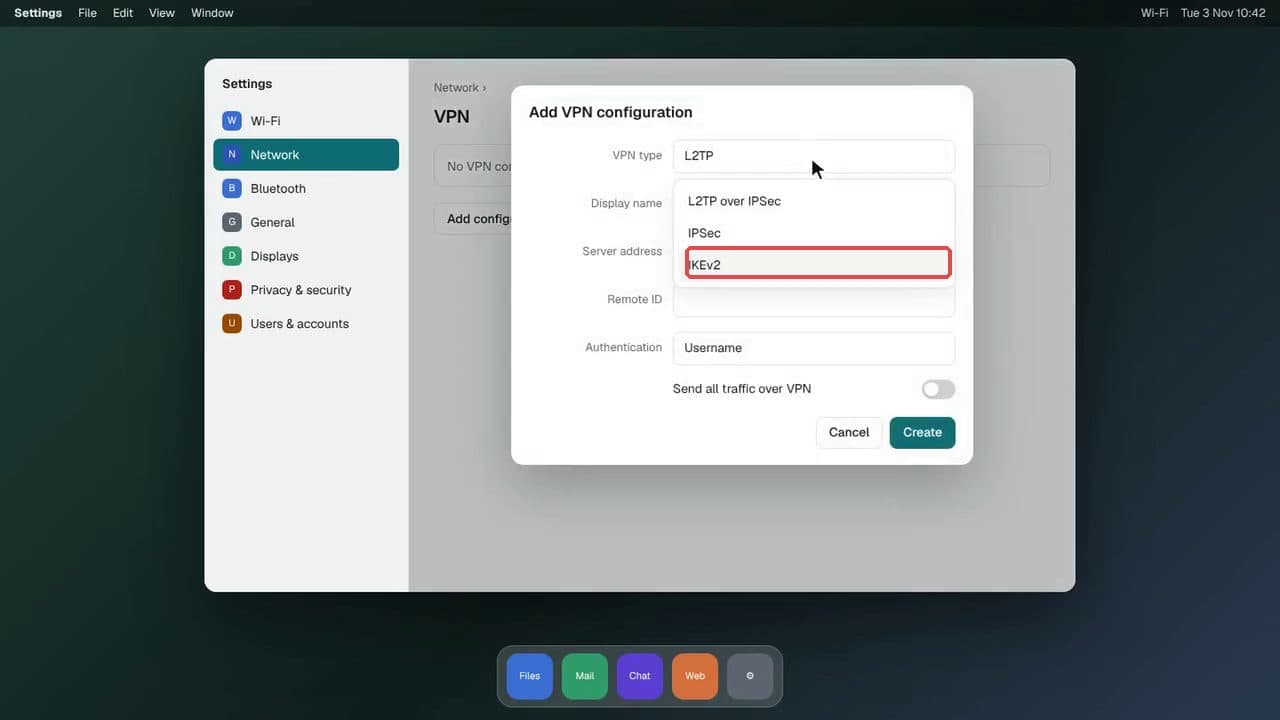
Select VPN Type
- From the VPN type dropdown, select IKEv2. The other types will not connect to the corporate server.
 9
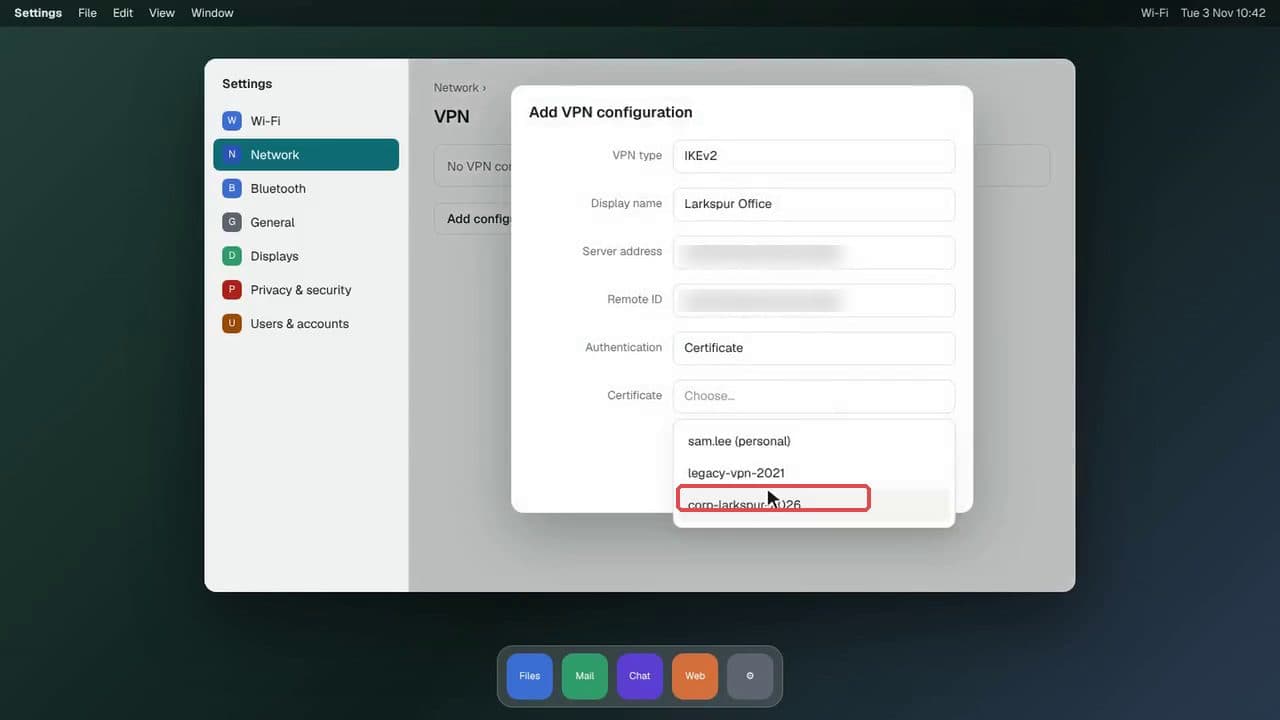
Choose Certificate
- Click Choose... next to the Certificate field.
- Select the certificate that starts with corp-, for example, corp-larkspur-2026.
 11
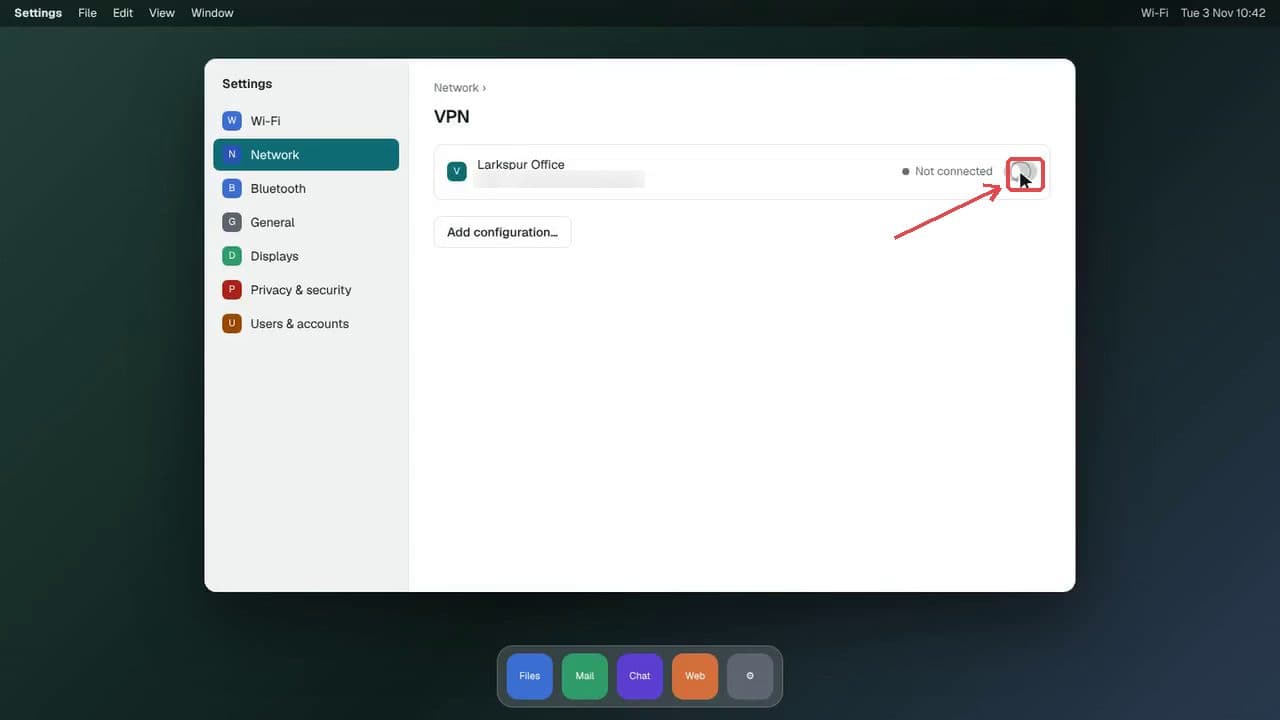
Connect to VPN
- Toggle the switch next to the newly created Larkspur Office VPN connection to On to establish the VPN connection. The connection status will change to Connected.
SOPs teams like this create
Covers what browser extensions can’t
Much of IT work happens outside the browser: System Settings, Control Panel, installers, VPN clients, the Outlook desktop app. Click-capture extensions only record clicks inside a browser tab. Clipstep works from a screen recording, so whatever is on screen can become a step.
How to record an IT fix that makes a good SOP
Questions teams ask
Yes. Clipstep works from a screen recording, so anything on screen can be captured: OS settings, installers and desktop apps. The in-browser recorder can share your whole screen, not just a tab.