
Last cohort’s training calls are this cohort’s onboarding guides.
You already recorded the walkthroughs: expenses, time off, the CRM, the ticketing tool. Clipstep turns each recording into a step-by-step guide new hires can follow at their own pace, instead of rewatching an hour of video.
Upload a recording you already have, or record your screen right in Clipstep. Nothing to install.
Onboarding is the same answers, every cohort.
New hires don’t rewatch recordings.
A 50-minute session isn’t searchable, so they ask the trainer instead.
Trainers repeat themselves.
The same “how do I submit an expense?” comes in every week from every new person.
Written guides drift out of date.
Nobody owns updating them, so screenshots show last year’s interface.
How it works for onboarding
- 01
Gather or record the walkthroughs
Last cohort’s onboarding calls, Loom walkthroughs from managers, recorded tool demos. Missing one? Record it in Clipstep in a few minutes.
- 02
One task per file
Trim each session into one file per task, such as “submit an expense” or “request time off,” and generate an SOP from each.
- 03
Review once
The trainer checks each draft and rewords anything unclear. Emails, phone numbers and addresses in screenshots are blurred automatically, and you can switch on names too.
- 04
Share on day one
Send published links in the welcome email. New hires can open them before they have access to the tools.
Submit an expense report
A 35-second narrated walkthrough of the internal portal at Larkspur Brew Supply Co., our made-up demo company.
 1
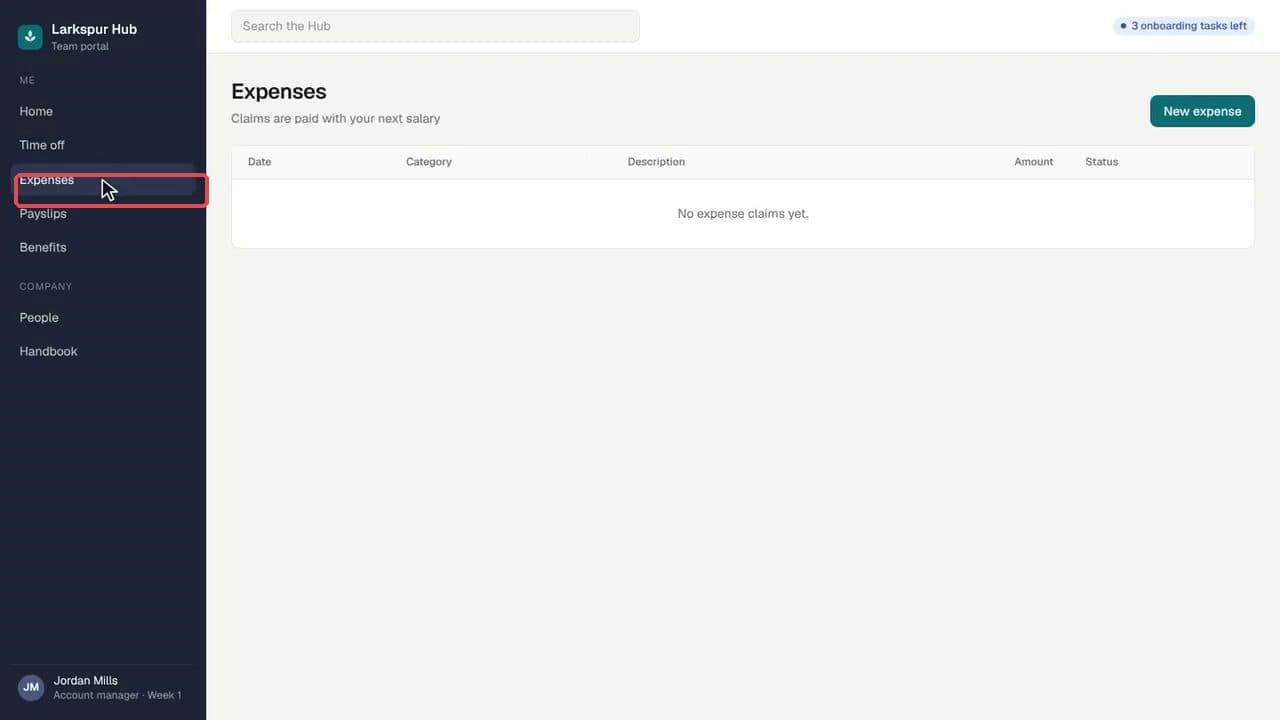
Navigate to Expenses
- Open the Larkspur Hub employee portal.
- From the left-hand navigation menu, click on Expenses to access the expense claims section. (Note: Avoid clicking Time off as that is for holiday requests).
 4
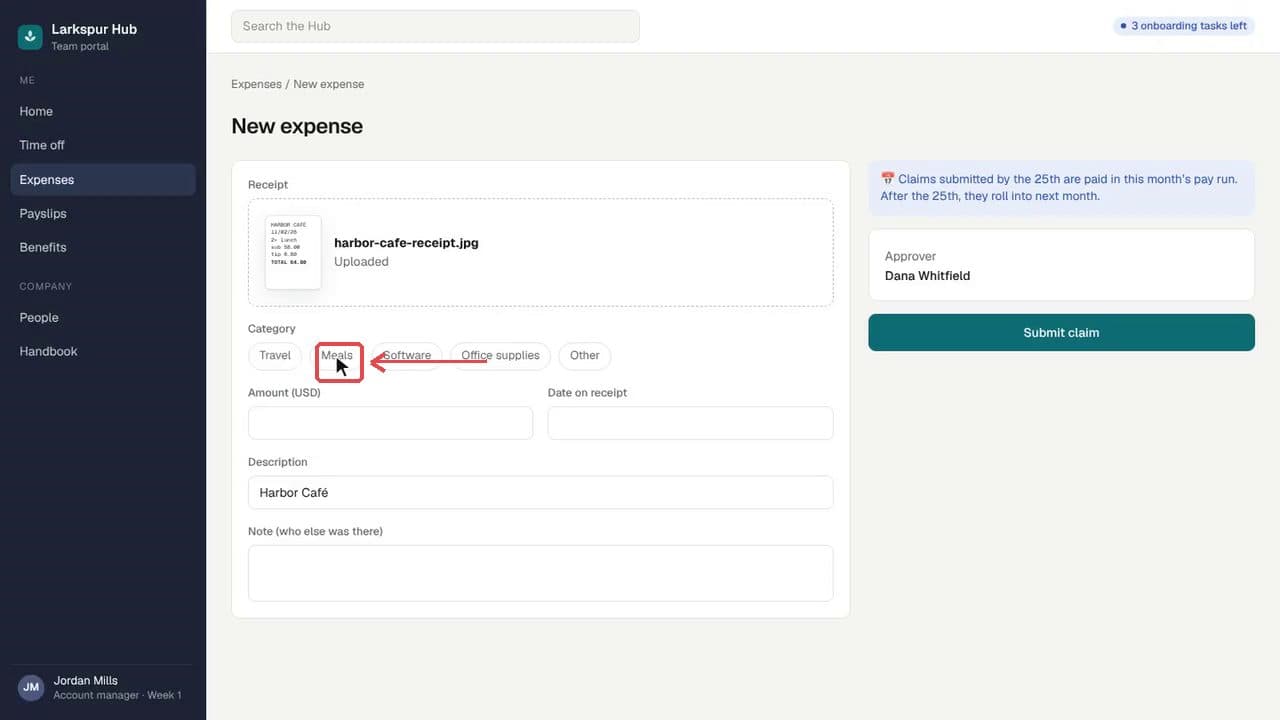
Select Expense Category
- Under the Category section, choose the appropriate category for your expense.
- For client meals, select Meals instead of Travel to ensure correct budget allocation by the finance department.
 7
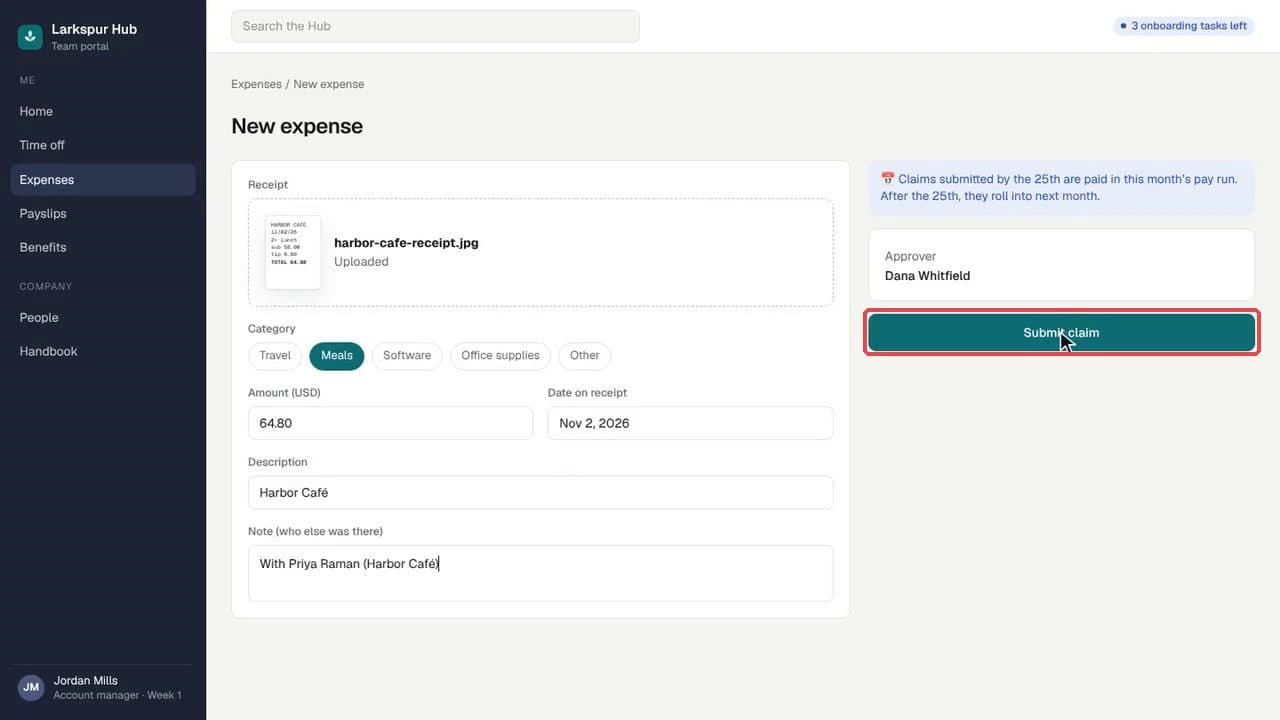
Submit the Expense Claim
- ⚠️ WARNING: Claims submitted after the 25th of the month will roll into the next month's pay run.
- Review all the entered details and ensure they are accurate.
- Click the Submit claim button to send your expense report for approval. The claim will show a Pending approval status until your manager approves it.
SOPs teams like this create
Video for the walkthrough, steps for the doing
Video is good for showing someone a process once. Steps are better for doing it the second time, when you just need to know what comes after the third click. Clipstep keeps both: the recording stays in your account, and the SOP gives each step its own screenshot and the explanation the trainer gave out loud.
How to record training that makes a good SOP
Questions teams ask
Yes. Any recording where the process happens on screen works, including Zoom, Teams and Google Meet recordings. Split sessions longer than your plan’s limit into one file per task.